PLANS, FILES & DOCUMENT CONTROL
The revised plan arrived. The crew should not be building from the copy in somebody's truck.
How construction document management software keeps plans, contracts, permits, receipts, selections, field records, and closeout files organized by job.Published November 2, 2026 · 13-minute read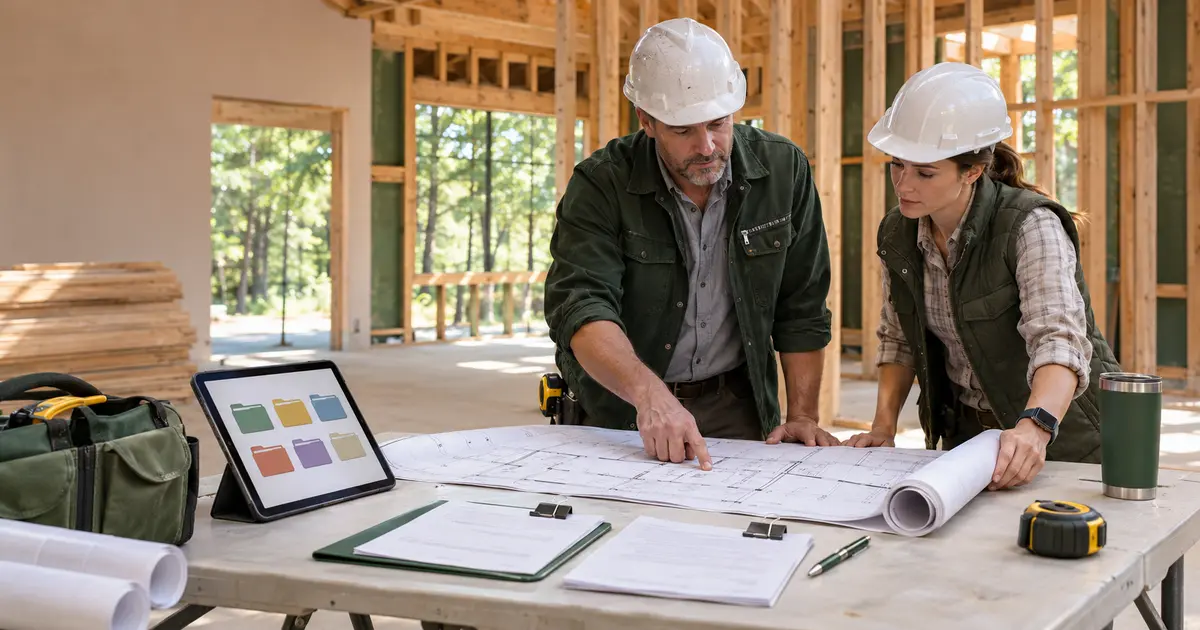
The designer emails a revised kitchen sheet on Friday afternoon. The superintendent downloads it, the cabinet installer still has last week's PDF, and the homeowner sends a marked-up screenshot to a group text. By Monday morning, everybody has a document. Nobody is certain which one controls.
That is why builders search for construction document management software, construction document control software, and document management software for builders. The problem is not a shortage of files. It is the absence of a repeatable place to file them, a naming convention that identifies them, an access rule that limits who can change them, and a field process that makes the current document unmistakable. BuildVecta supplies the job-centered filing system and connects it to the rest of the build; the contractor still controls review, revision status, distribution, and retention.
THE SHORT ANSWER
Construction document management software keeps each project's working records in one structured, accessible job file.
BuildVecta gives every job a digital binder with dedicated areas for plans and specifications, contracts and change orders, permits and inspections, receipts and invoices, selections, schedules and draws, progress records, warranties, and other documents. Contractors can add custom folders, upload files from a phone or computer, and let homeowners contribute requested documents or selection files through limited areas. The software helps the team find the record; the team must still verify that a plan, approval, signature, or instruction is current and authoritative.
A shared drive is only useful when the field knows how to use it
Putting every file into one cloud folder does not create document control. If filenames are vague, revisions are mixed together, permissions are too broad, or the crew keeps using downloaded copies without checking for updates, the same confusion simply moves online.
A practical contractor document management system needs two parts. The software provides consistent storage, access, and project context. The company provides the operating rules: where each record belongs, who may upload or approve it, how revisions are named, when a file becomes current, how affected people are notified, and what must be retained at closeout.
Give every construction record a logical home
| Document group | Typical records | Field control question |
|---|---|---|
| Blueprints & plans | Issued drawings, details, specifications, addenda, approved sketches | Is this the current reviewed set for today's work? |
| Contracts | Prime agreement, subcontracts, exhibits, signed change orders | Is it signed, complete, and applicable to this party and scope? |
| Permits & inspections | Applications, approved plans, permits, correction notices, inspection results | What must be available on site, and what approval is still open? |
| Receipts & invoices | Supplier invoices, subcontractor bills, receipts, proof of payment | Does the record belong to this job, cost code, and payment event? |
| Selections & specifications | Approved products, model numbers, colors, finish schedules, cut sheets | Has the client approved the exact item the trade is ordering or installing? |
| Progress records | Daily logs, site photos, delivery records, safety notes | Does the file show what happened, when, where, and who recorded it? |
| Warranties & service | Warranties, manuals, serial numbers, service photos, repair records | Can the team and owner find the record after handoff? |
BuildVecta starts with these construction-specific folders instead of an empty drive. Contractors can add their own folders for items such as engineering, lender records, safety documents, or a project-specific scope. Bid files can also remain separated by trade and contractor, supporting the subcontractor bidding workflow without mixing competing proposals together.
How BuildVecta organizes a job's documents
Open the correct job
Start inside the project so the upload is associated with the right customer, address, budget, schedule, and team.
Choose the document's purpose
Route the file to plans, contracts, permits, invoices, selections, daily records, warranties, or another defined folder.
Name it for retrieval
Use a filename that identifies the record, date or revision, and status before uploading it.
Review the file
Open the uploaded document and verify that it is readable, complete, assigned to the right job, and appropriate for its folder.
Notify affected people
Tell the crew, trade, customer, or consultant when a new document changes what they should review or do.
Connect the action
Update the related task, selection, permit, RFI, change order, budget item, or closeout requirement instead of treating the upload as the end of the process.
Use a filename that can answer four questions
“scan-003.pdf” forces someone to open the file before knowing whether it matters. A useful filename should reveal the project record, subject, revision or date, and status. For example, “Kitchen-Electrical-A5.2-Rev3-Issued-2026-11-02.pdf” is easier to evaluate than “new-plan-final2.pdf.” Your exact format can be shorter; consistency matters more than punctuation.
Avoid using “final” when another revision may still appear. Terms such as Draft, For Review, Approved, Issued for Construction, Superseded, and Record Set have different implications. Define them for your company and project, and use only statuses that the responsible party has actually authorized. A clear filename helps retrieval, but it does not create approval by itself.
Build a revision process around the file system
BuildVecta stores plans and other files in the project, but uploading a revised document should not be treated as automatic version control. The contractor needs a deliberate revision procedure. Confirm the new document's source and issue date, compare it with the prior set, identify the affected work, label the old copy as superseded or remove it from active use according to company policy, and notify every person who relies on it.
If the revision answers a field question, preserve the decision with the RFI record. If it changes scope, price, or contract time, follow the change-order process. If it changes an approved finish, update the selection record. The file is evidence of the change; connected job controls make the change operational.
Control homeowner contributions without opening every project file
Clients often need to provide appliance specifications, inspiration photos, selection documents, financing forms, or other requested records. Sending everything through text and email separates the contribution from the job. Giving broad editing access creates a different problem.
BuildVecta's homeowner role limits uploads to Homeowner Uploads and Selections & Specifications. That gives the customer a clear place to contribute requested material without general access to edit the contractor's plans, contracts, invoices, or internal job folders. The contractor still reviews each contribution, confirms whether it is approved, and moves any resulting decision into the appropriate selection, schedule, budget, or change workflow.
Make job files usable from the field
A document system fails if it only works at an office desk. BuildVecta lets users choose a job folder and upload a document, photo, or scan from a supported device. Large-file upload handling supports individual files up to 250 MB, and the current Core plan includes 100 GB of job-file storage. That capacity is useful for plan sets and project records, but storage volume is not the same as organization.
The field habit matters most: open the job, check the active folder, and verify the document before relying on it. For high-risk or inspection-dependent work, confirm the approved plan and required on-site record with the authority responsible for that work. Do not assume a screenshot, cached download, or forwarded attachment is current merely because it is convenient.
Keep documents connected to the work they support
A permit approval should inform the inspection sequence. A supplier invoice should connect to the job cost and payment review. A finish specification should reach the installer before ordering. A warranty should survive project closeout. A photo of concealed work should remain findable long after drywall is installed.
BuildVecta keeps the digital binder inside the same job workspace as budgets, schedules, tasks, bids, draws, communications, daily logs, RFIs, and closeout tools. For example, permit files can support the permit workflow, field images can support construction photo documentation, and progress records can support daily reporting. That project context is the practical difference between merely storing a file and being able to act on it.
A contractor document-control checklist
- Assign one project owner for the document structure and filing rules.
- Define the required folder, filename, date, revision, and status format.
- Verify every upload belongs to the correct job before relying on it.
- Record who issued or approved the document and when.
- Keep draft, review, approved, and superseded records distinguishable.
- Limit upload and editing access to the people who need it.
- Notify affected trades when a controlling document changes.
- Remove or clearly mark obsolete field copies according to company policy.
- Connect the document to its RFI, change, selection, cost, task, or inspection.
- Confirm required signed originals and approved sets are retained properly.
- Review the project file before each draw, inspection, and closeout milestone.
- Deliver the appropriate warranty, manual, approval, and record set at handoff.
What document management software cannot verify
Software cannot decide whether a drawing is constructible, whether a detail complies with code, whether a signature is legally sufficient, whether a permit has been issued, or whether a person had authority to approve a change. It cannot determine which record the contract says controls when documents conflict. Those questions require review by the contractor and, when appropriate, the owner, designer, engineer, attorney, inspector, lender, insurer, or other qualified party.
BuildVecta's job is to keep the records organized and connected. The contractor's job is to verify the information, preserve required evidence, distribute controlling documents, protect confidential information, and stop affected work when clarification or approval is still needed.
COMMON QUESTIONS
Construction document management software FAQ
What is construction document management software?
Construction document management software gives a project team one organized place for plans, specifications, contracts, permits, inspection records, invoices, selections, photos, daily logs, warranties, and other job files. A useful system makes documents easier to file, find, review, and share with the appropriate people.
What construction documents should a small builder keep by job?
At minimum, keep the signed agreement, current plans and specifications, permits and inspection results, approved selections, subcontractor bids, purchase and payment records, change orders, daily records, progress photos, warranties, and closeout documents. The exact record set depends on the project, contract, trade, lender, insurer, and jurisdiction.
Does BuildVecta provide automatic plan version control?
BuildVecta stores plans and project files in job folders, but contractors should not assume that uploading a new file automatically supersedes an older one. Use a clear revision, date, and status in the filename; verify the current sheet set; and communicate which document controls before field work proceeds.
Can homeowners upload documents to BuildVecta?
Yes. A homeowner role can upload requested documents and selection files to the Homeowner Uploads and Selections & Specifications areas without receiving general editing access to the contractor's entire job-file structure.
How much file storage is included with BuildVecta?
BuildVecta's current Core plan includes 100 GB of job-file storage. The product supports individual uploads up to 250 MB, subject to supported file types and the account's available storage.
Is a construction document system a replacement for signed originals or required records?
No. Follow the contract, applicable law, licensing rules, insurer requirements, lender instructions, and company retention policy. Preserve signed originals, certified records, approved plan sets, or other required formats when the project calls for them.
How much does BuildVecta cost?
BuildVecta Core is $39 per month plus applicable tax after a three-day free trial. The trial includes one takeoff. Optional add-ons, marketing upgrades, advertising spend, permit filing fees, and physical gifts are separate.
GIVE EVERY JOB FILE A HOME